This guide starts after your MapleDeploy server is ready. If you have not created a server yet, start with Create your server.
By the end, you will have an application running on your MapleDeploy server using Coolify.
What you will need
- A Git repository hosted on GitHub, GitLab, Bitbucket, Gitea, or another Git host.
- A Dockerfile in your repository, or a project that Nixpacks can detect.
- The port your application listens on, such as
3000,5000, or8080.
GitHub has the deepest Coolify integration. For other Git providers, public repositories can use Public Repository and private repositories use deploy keys.
Step 1: Open Coolify
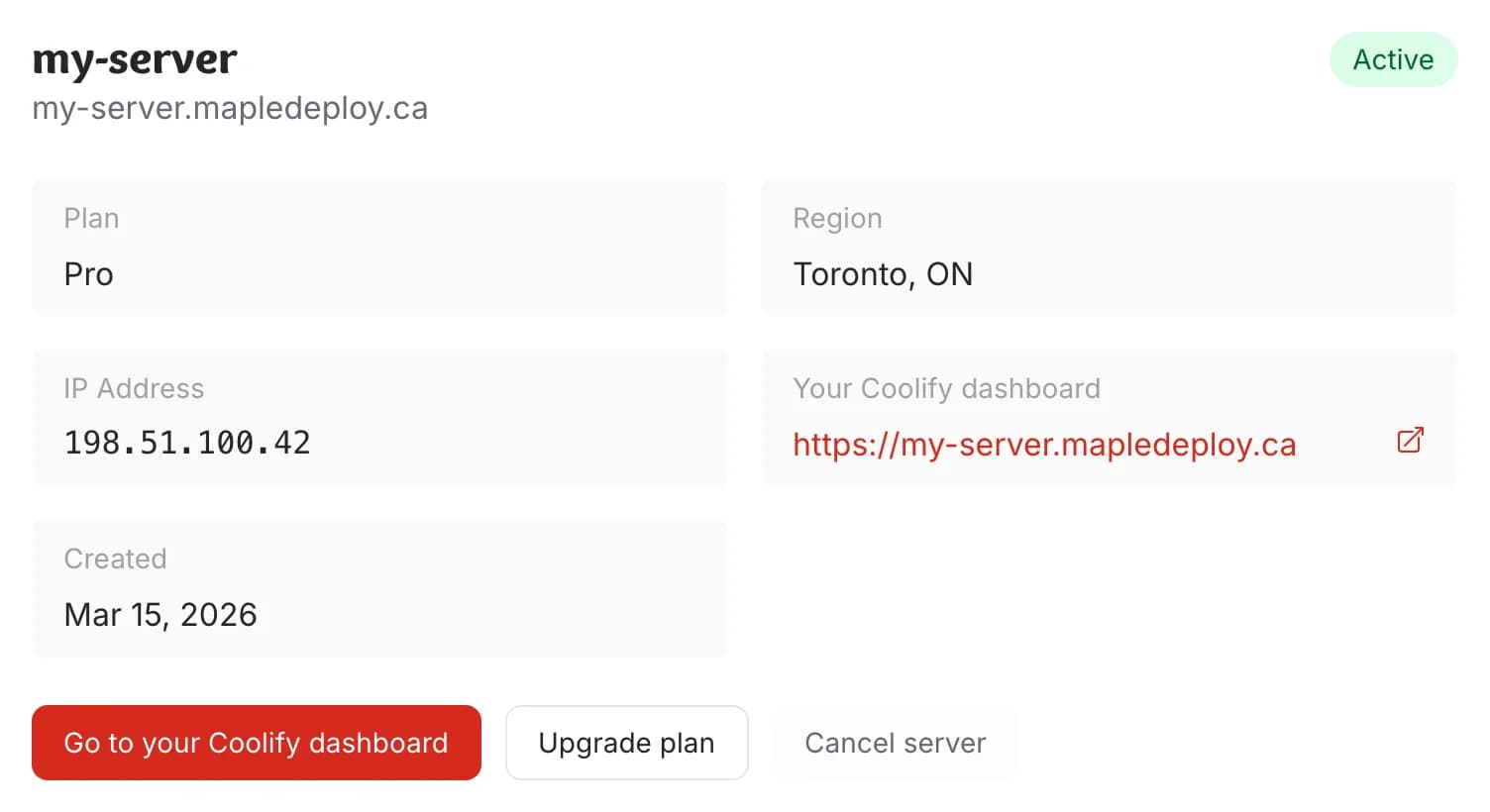
Sign in to the MapleDeploy dashboard, open your server, and select the Coolify dashboard link.
Step 2: Connect your Git provider
If your code is on GitHub, start there. In Coolify, go to Sources and add a GitHub App. GitHub will ask which repositories the app can access.
Once connected, Coolify can pull from those repositories and create webhooks for automatic deploys when you push to the selected branch.

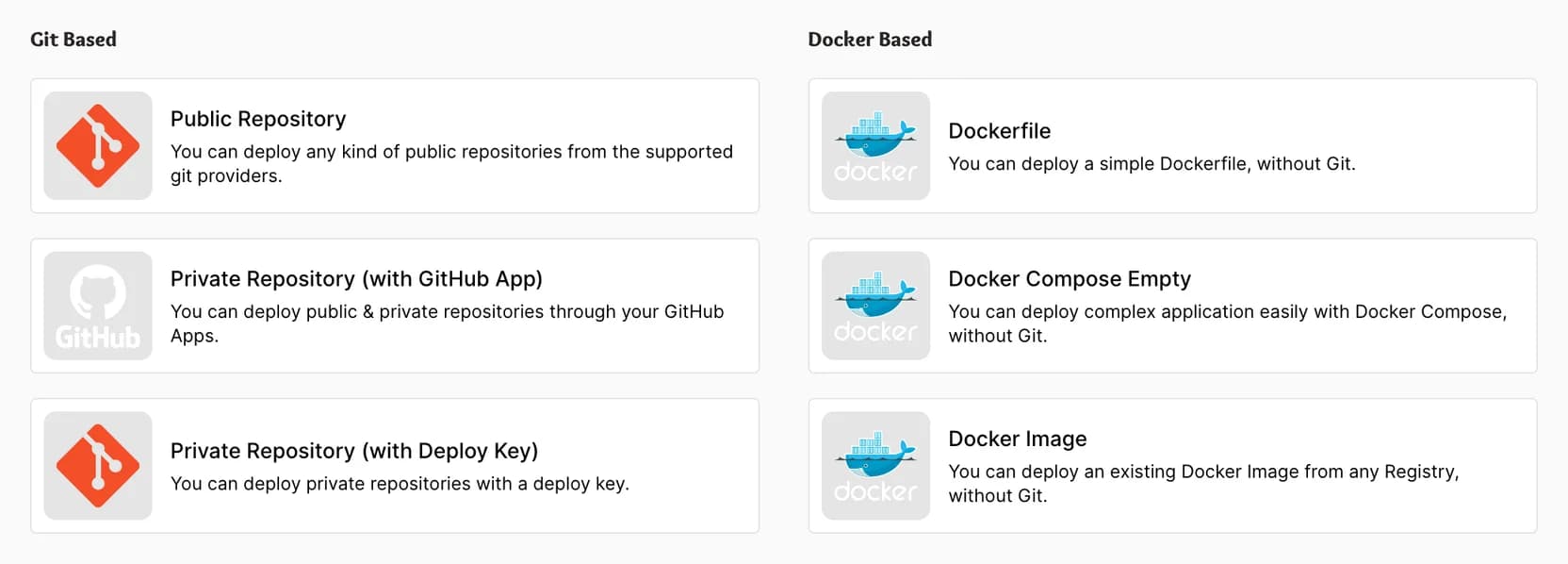
For GitLab, Bitbucket, Gitea, and other Git providers, public repositories can use Public Repository. For private repositories, choose Private Repository (Deploy Key). Coolify generates a public deploy key. Add that key to your repository settings with read access.
For GitLab, Bitbucket, and Gitea, use the Manual Git Webhooks section in Coolify, set the matching webhook secret, and configure push events in your Git provider. For other Git providers, use the auth-required deploy webhook with a Coolify API token through your provider's workflow or webhook system.
Step 3: Create the application
In Coolify, create a project. Projects group related resources.
Inside the project, choose Add New Resource, then select the repository type:
- Public Repository for a public repo.
- Private Repository (GitHub App) for a repo connected through GitHub.
- Private Repository (Deploy Key) for a private repo from any Git provider.
Select the repository and branch to continue.
Step 4: Configure the build
Coolify needs to know how to build your app and which port it should route traffic to.
Build pack
If your repository has a Dockerfile, select Dockerfile. This is the most predictable option because your repository controls the build.
If the Dockerfile is not in the repository root, set Dockerfile Location to its path from the app base directory, such as /docker/Dockerfile.
If you do not have a Dockerfile, select Nixpacks. Nixpacks auto-detects common project types. For monorepos or unusual builds, use a Dockerfile.
Exposed port
In the Network section, set Ports Exposes to the port your app listens on:
- Node.js Express or Next.js:
3000 - Python Flask:
5000 - Go HTTP server:
8080
This must match your app exactly. If the port is wrong, the container may start but the app will not be reachable.

Step 5: Deploy
Select Deploy. Coolify pulls your code, builds the image, starts the container, and shows logs while it works.
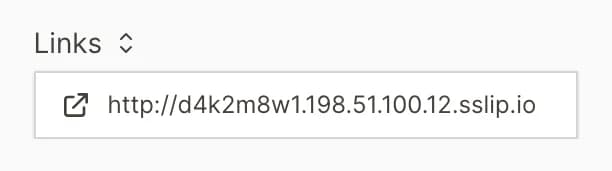
When deployment finishes, open the Links menu at the top of the application page. Coolify gives you a temporary URL that works immediately.
Step 6: Verify the app
Open the temporary URL. If the app loads, your deployment is working.
If it does not load, check the most common causes first:
- Build errors: Read the build logs and fix missing dependencies or failed commands.
- Port mismatch: Set Ports Exposes to the exact port your app binds to.
- Missing environment variables: Add required variables in Environment Variables, then redeploy.
- Localhost binding: Bind the app to
0.0.0.0, not only127.0.0.1orlocalhost.
Next steps
For a production URL, follow Custom domains.
For databases, set up backups before you store important data. See the backup guide.